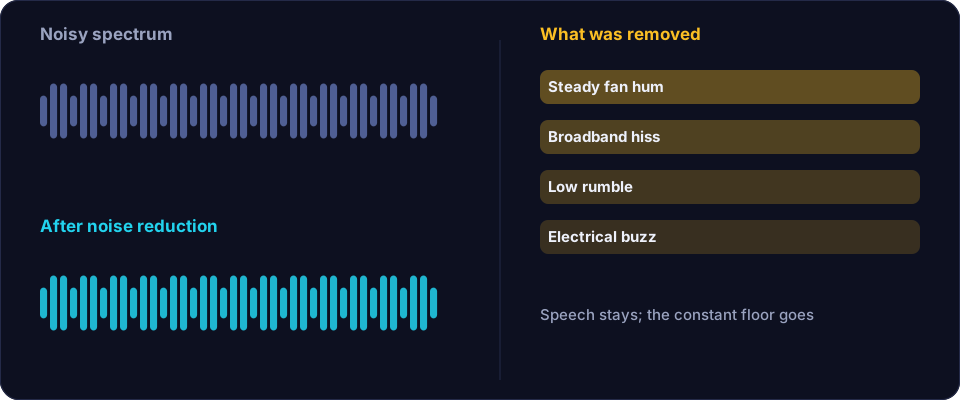
Background noise is everything in a recording that is not the voice you wanted. It comes in two broad types, and they behave differently, so they need different treatment. Steady noise is constant and even: a fan, a fridge, a hiss from a cheap preamp, mains hum from a bad cable. Variable noise changes from moment to moment: a passing car, a door closing, a chair creaking, a dog barking. Steady noise is easy to remove because it never stops. Variable noise is harder because it overlaps with the voice and a tool cannot always tell the two apart.
Step 1 — Record a few seconds of room tone
Before you record anything else, sit still and record ten seconds of silence in exactly the position and setup you will use. Do not talk, do not move. This clip is your noise profile. Some editors let you feed it to a noise-reduction tool so the tool learns precisely what the room sounds like when nobody is speaking. Even if your tool does not accept a profile, the clip tells you what you are fighting and whether the room is quiet enough to bother.
Step 2 — Cut the noise you can cut without software
Before any processing, spend two minutes removing the noise at its source. Turn off the fan or air-conditioning, or move away from it. Close the window. Put the phone in another room. Swap a long unbalanced cable for a short one. These changes cost nothing and they always beat processing, because processing can only subtract noise after it has already been mixed with the voice.
Step 3 — Trim the silence and the worst edges
Load the recording and trim the long gaps. Silence between sentences is where noise is most obvious, because with no voice to mask it the ear goes straight to the hiss. Tightening those gaps with a tool such as Remove Silence removes a surprising amount of the noise the listener notices, before you touch a single denoise control.
Step 4 — Apply noise reduction, gently, in small amounts
Now run the denoiser. The mistake almost everyone makes is to push the reduction too far. A denoiser works by estimating the noise and subtracting it; when you ask for too much, it starts removing parts of the voice as well, and the result sounds watery, metallic or as if the speaker is underwater. Set the reduction modestly, listen, and repeat two or three times with light settings rather than once with an aggressive setting. You can always apply a little more; you cannot put back what a heavy pass has already destroyed.
Step 5 — Use a gate or expander for the gaps
A gate mutes the signal when nobody is speaking, and a gentler expander simply pushes quiet passages down. Either one cleans up the space between words. Set the threshold so that quiet speech is still above it, and use a soft knee or a short attack so the gate does not chop the beginnings of words. If you can hear the gate opening and closing, it is working too hard.
Step 6 — Filter the low end and any narrow hum
Most voices carry no useful energy below about 80 Hz. A high-pass filter around 80–100 Hz removes rumble, footsteps and desk thumps without touching the voice. If you have a constant buzz at a single low frequency, a narrow notch filter at that frequency removes it almost completely. This is the one place where a surgical, precise fix beats a broad one.
Step 7 — Normalise and listen again
Bring the peak level up to a sensible target with a normaliser so the result is loud enough to judge fairly, then listen to the whole thing on headphones and on a phone speaker. Match the loudness against the original when you compare, because a louder version almost always sounds "better" even when it is not. If you can hear the processing, back it off.
When to use an online tool instead
If you have a single recording with steady noise and no desktop editor, a web tool covers steps 3 to 6 in one pass. Offex Audio, for example, offers silence removal and noise cleanup on our secure server: you upload a file, choose a cleaning strength, and download the result. It is the fastest path for a voice memo, a quick interview or a lecture recording that just needs to sound tidier. For heavily damaged audio or delicate music work, a full editor with a noise profile still gives you more control.
Mistakes to avoid
- Over-reducing. A natural-sounding voice with a little room tone is better than a sterile, metallic one.
- Denoising before trimming. Remove the silence first so the tool is not working on empty space.
- Processing an already-processed file. Each pass adds artefacts; start from the original whenever you can.
- Ignoring the room. If the noise is severe, the fastest fix is still to re-record in a quieter place.
Conclusion
Removing background noise is a sequence, not a single button. Capture room tone, remove what you can at the source, trim the silence, denoise in light passes, gate the gaps, filter the low end, and normalise. Work gently and check as you go, and most home recordings come out clean, close and natural without ever needing a studio.
Frequently asked questions
Can background noise be removed completely?
No tool removes all of it without also changing the voice. The goal is to reduce noise to the point where it no longer distracts, while keeping the voice natural.
Should I use a gate or a noise-reduction tool?
Both, usually. Noise reduction lowers the steady floor across the whole file; a gate or expander cleans up the silence between phrases. Use the gate gently so it does not clip words.
Why does my voice sound watery after denoising?
That is over-reduction. The tool is subtracting parts of the voice along with the noise. Undo it and apply two or three lighter passes instead of one heavy one.
Does removing silence help with noise?
Yes. Noise is most noticeable in the gaps, so trimming dead air reduces how much noise the listener actually notices before you change any other setting.